Qustodio Review 2026
A parental control app that works surprisingly well as a personal productivity tool. Detailed analytics, behavioral alerts, and powerful scheduling — all under one subscription for you and your kids.
No credit card required · 30-day money-back guarantee
🤔 Why Would a Parental Control App Be a Productivity Tool?
You might be surprised that parental control software falls into the productivity and anti-distraction category. But bear with me.
Such apps have all the functionality that dedicated productivity apps offer — behavioral tracking, site blocking, app limits, schedules — often with more depth. And Qustodio, one of the most popular parental control solutions with over 7 million users worldwide and 1M+ Play Store downloads, is a perfect example.
🎯 The dual-use value proposition
The Basic plan supports up to 5 devices. That means one subscription covers both your children’s devices and your own. You solve two problems at once: your kids’ digital safety and your personal productivity — for a single annual fee.
Moreover, since Qustodio was built for children, special attention has been given to data reliability, security, and bypass-resistance. When you use it on yourself, you get those same protections working against your own procrastination tendencies.
Key Features at a Glance
Detailed Usage Stats
Time per app, per site, per category — broken down daily, weekly, and monthly with visual reports.
Search Query Tracking
See what you (or your child) searched on Google and YouTube — with alerts for specific keywords.
Routines & Schedule
Build a custom daily schedule: study time, gaming windows, sleep mode, work hours.
Web & App Filtering
Block by category, by specific URL, or set time limits. Predefined category database covers thousands of sites.
YouTube Monitoring
See what was watched, what was searched, and how many videos — with a separate rules menu.
Behavioral Alerts
Get email notifications for specific search queries — great for catching procrastination patterns.
📊 Very Detailed Usage Statistics
This is where Qustodio genuinely impresses as a productivity tool. In your profile dashboard, you get a breakdown of everything — time per app, blocked site attempts, and a daily activity overview all in one place.
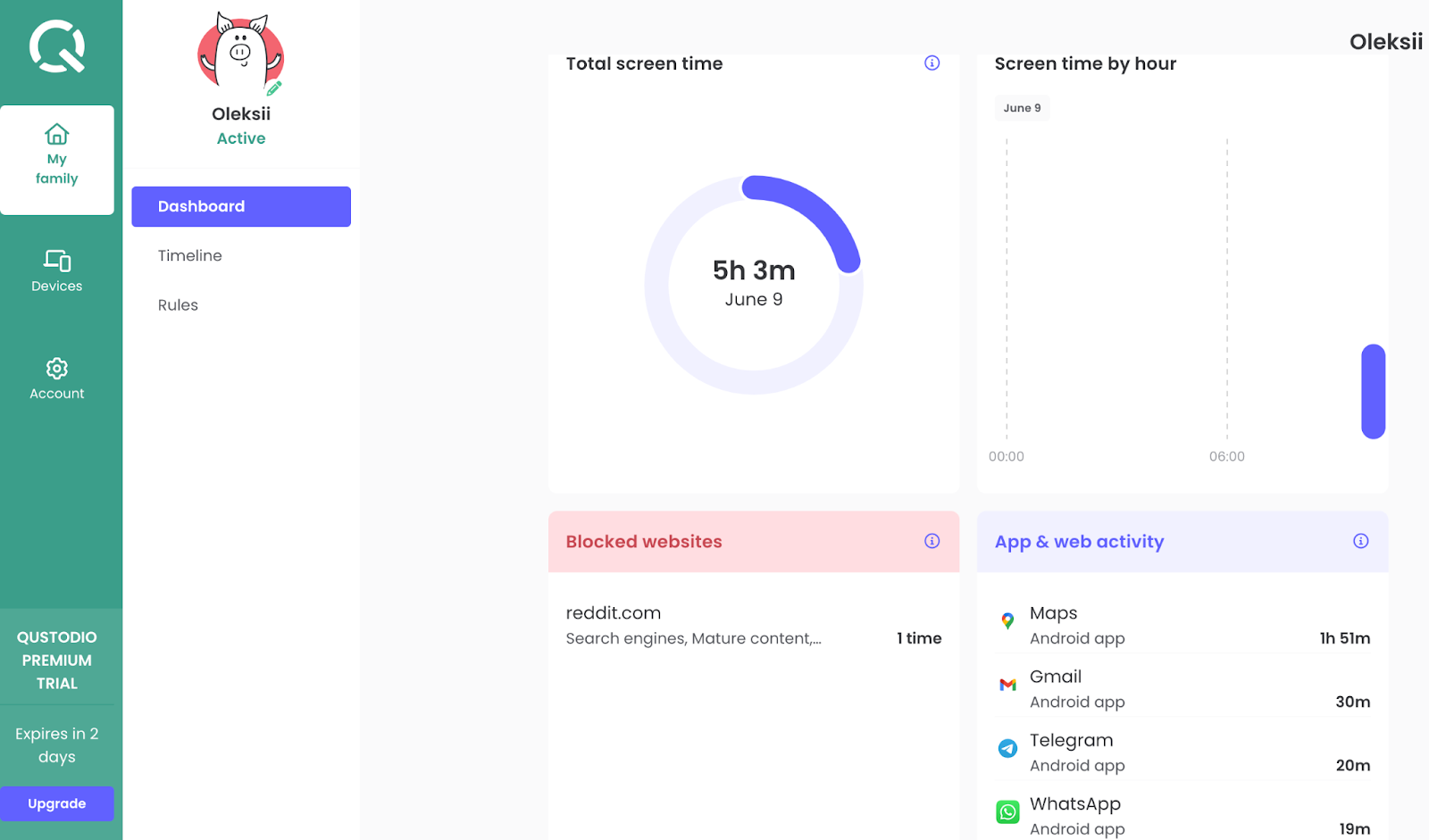
📸 The main dashboard shows time-per-app breakdown, blocked sites, and activity overview
Blocked Websites
All websites falling under adult content categories are logged here automatically. Any blocked site visit appears in this section, and you’ll receive an email notification. If you add a site to the whitelist, notifications stop. In my testing, Reddit was flagged as adult content — adjusting the whitelist takes seconds.
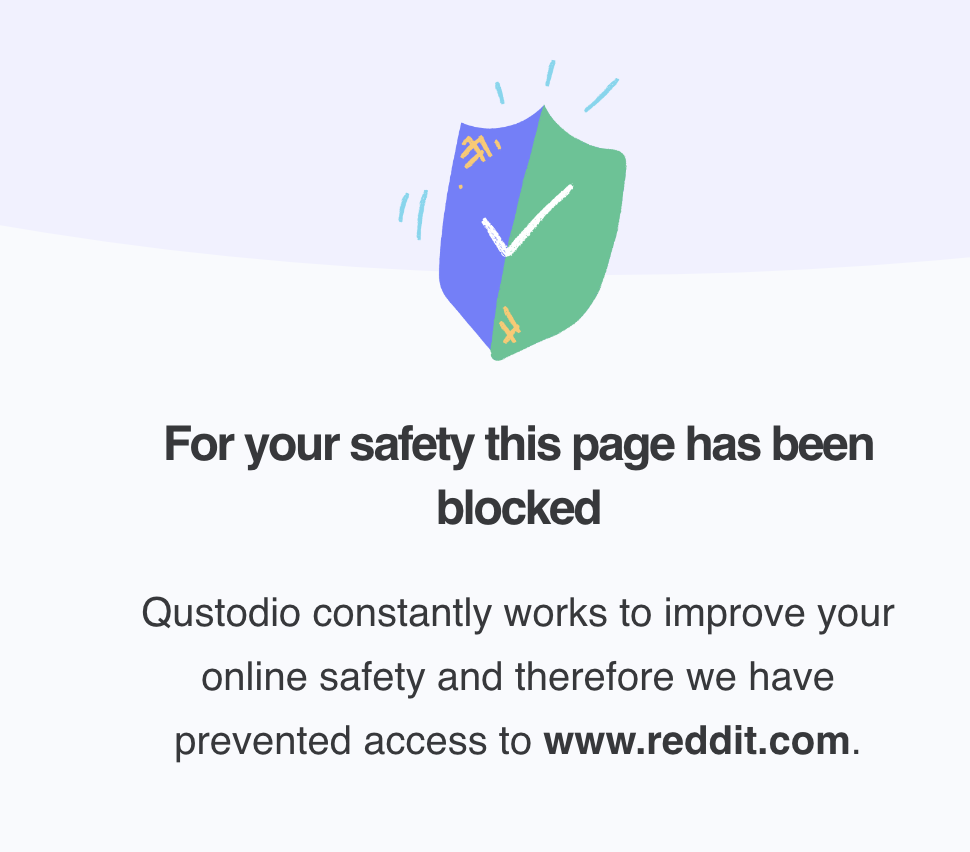
Blocked site notification on device
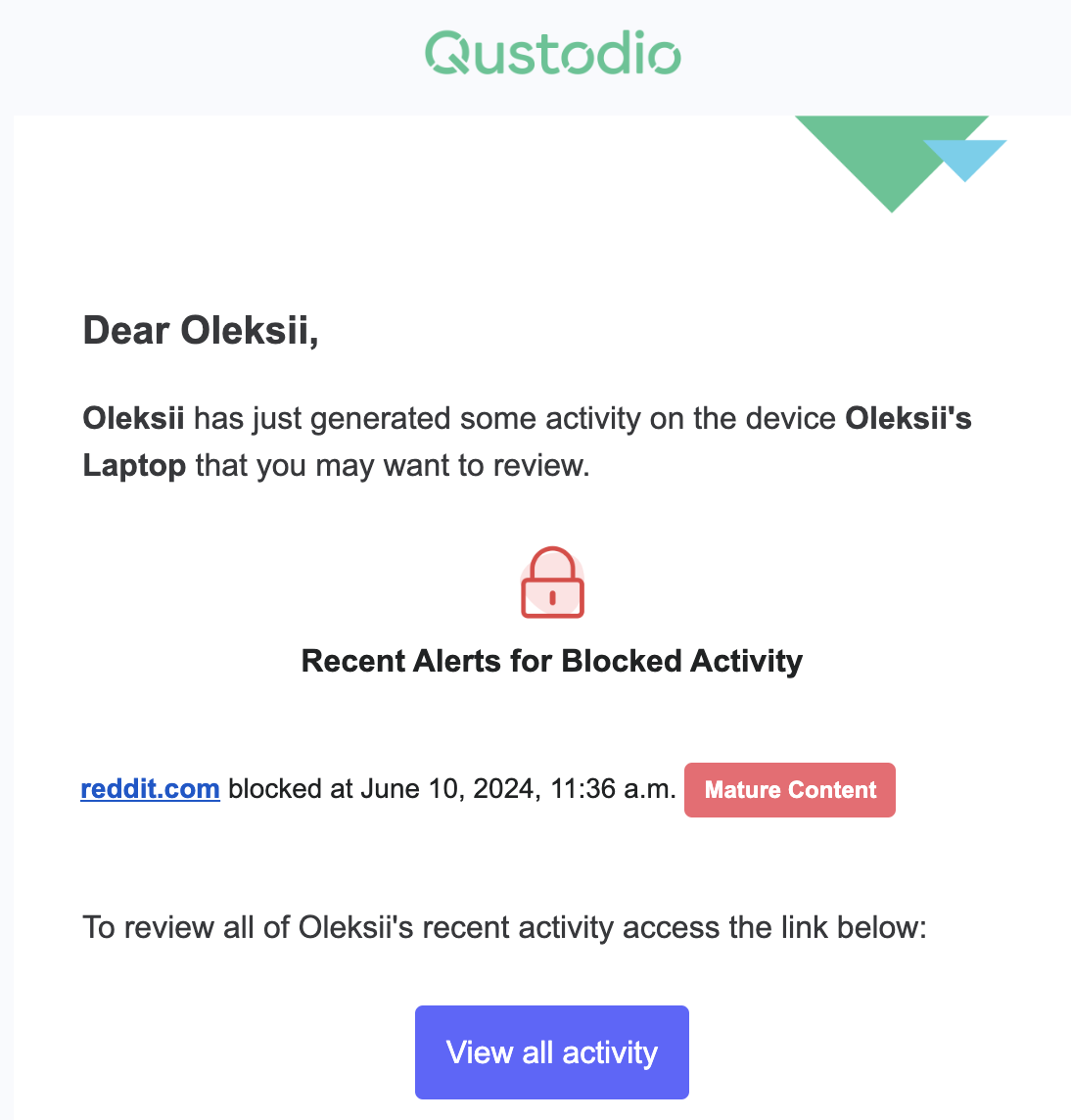
Email notification for blocked site attempt
📋 Timeline & Activity View
The Timeline section shows everything you’ve done online in chronological order. You can filter by websites, apps, search queries, calls, messages, and more.
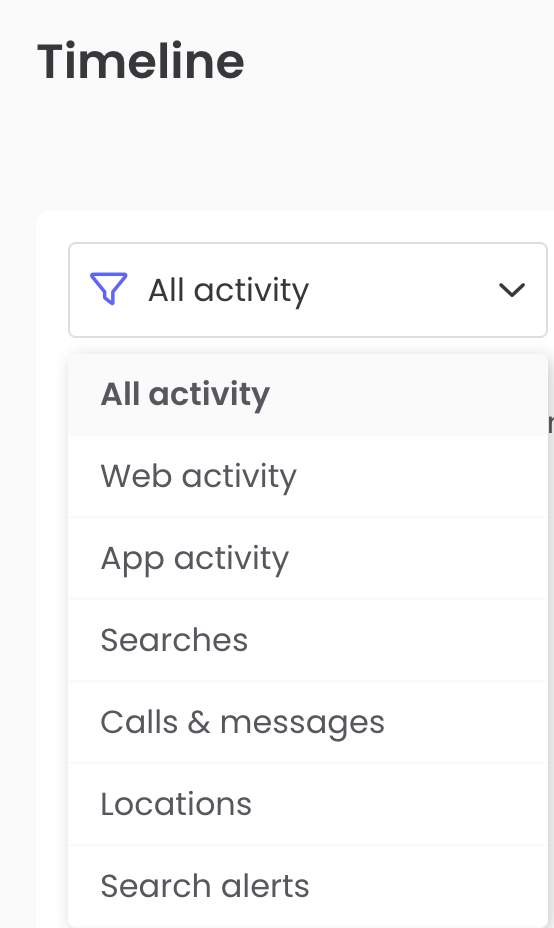
📸 Timeline — all online activity sorted chronologically, filterable by type
Web Activity — The “Alert Me” Feature
From the Timeline, clicking on any site gives you three options: Allow / Ignore (removes from block list), Alert Me (sends an email every time you visit this site, even if allowed), or View Details (shows categorization info).
The Alert Me feature is brilliant for behavioral awareness. Instead of blocking news sites entirely, you set an alert — every time you start doom-scrolling, you get an email reminder. This gentle accountability often works better than hard blocking for building long-term habits.
⚙️ Rules — Your Command Center
The Rules section is where Qustodio’s power becomes apparent. The level of customization rivals or surpasses dedicated productivity apps.
Web Filtering by Category
Every site on the internet is pre-categorized in Qustodio’s database. For each category you assign: Allow (whitelist), Alert Me (soft accountability), or Block (hard block). The category database is extensive — blocking the “News” category prevented access to every major news portal I tested.
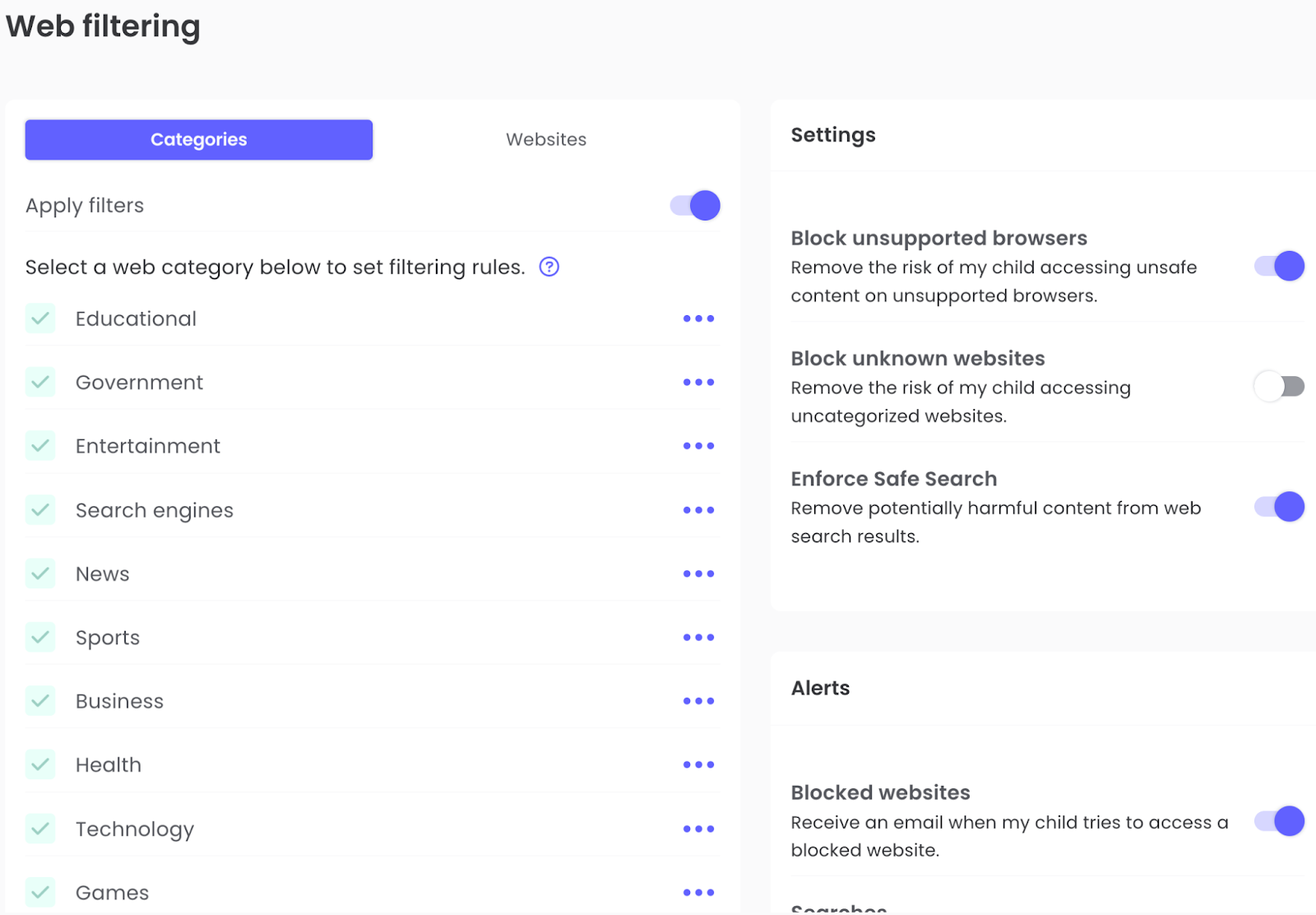
Category-based web filtering — Allow, Alert, or Block entire content types
Notable Web Settings
- Block Unsupported Browsers (on by default) — prevents Tor and other bypass browsers. Excellent for keeping yourself honest.
- Block Unknown Sites by Default — any site not in Qustodio’s database is blocked until you allow it.
- Enforce Safe Search — useful for children; I recommend disabling for adult use since it makes results too restrictive.
Alerts for Search Queries
You can set notifications for specific search keywords — Qustodio fires an email every time those words are searched. For productivity: identify your personal procrastination search patterns and add them to the alerts list. Every time you start going down that rabbit hole, you get a reminder.
🎮 Apps & Games Control
The Games & Apps section lets you allow, block, or set session time limits on any installed application — on both computer and mobile. My personal setup: computer games allowed twice a week for one hour each. Instagram set to 15 minutes per day, available only after 5 PM.
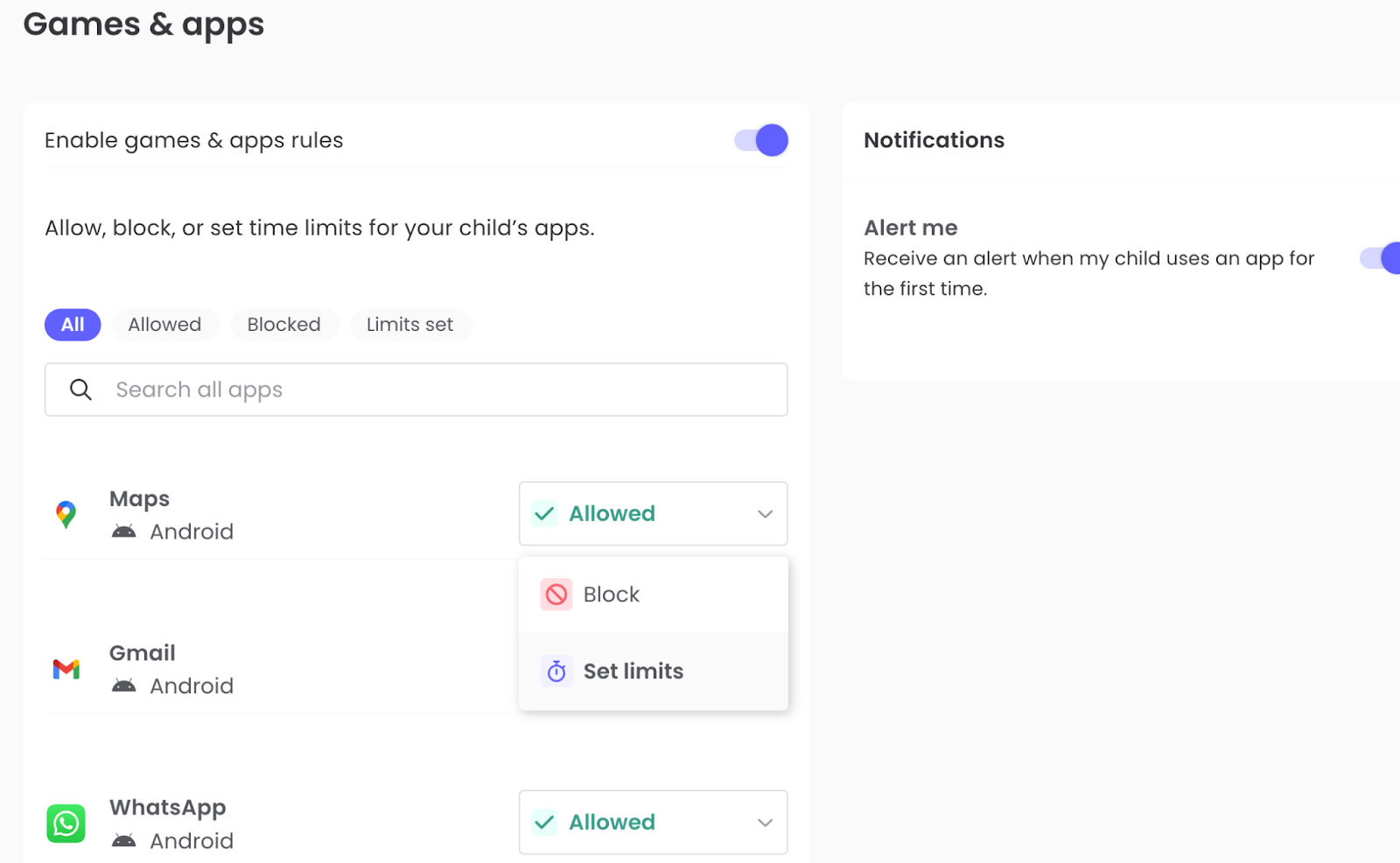
Apps & Games — per-app limits and blocking
Daily Time Limits
Sets a hard cap on total device usage per day, counting all devices together. When time expires, choose between Lock Device (all apps locked/hidden) or Alert Me (soft notification, you can continue).
📆 Routines — Build Your Ideal Daily Schedule
Routines let you create named time slots with specific rules: study time, entertainment time, work focus, sleep mode — each with its own site and app restrictions.
Do not use the built-in “Study” preset for adult productivity work — it blocks work-related applications by design (for children who should be doing homework). Always create a custom Routine that only blocks the sites and apps you personally want to avoid.
My Personal Schedule in Qustodio
Gaming allowed for 1 hour, twice a week (Saturday and Sunday only). A custom Work Mode blocking only distraction categories — not work tools. Sleep Mode from 9 PM to 7 AM, Monday through Friday. After about 5 minutes of configuration, the complete daily routine is active.
📺 YouTube Monitoring
YouTube gets its own dedicated section — videos watched that day, what was searched, how many searches made, and direct links to watch history. In the Rules section you can configure YouTube behavior separately: prevent browser access, block entirely, or set a daily cap. As a bonus, daily and weekly device usage reports arrive via email automatically.

YouTube section — videos watched, search terms used, watch history links
🆘 Panic Button
The Panic Button sends an SOS message with your exact GPS coordinates to trusted contacts via email. A follow-up is sent when the SOS is canceled.
⚠️ Platform note: The Panic Button is available on Android only as of 2026. It is not available on iOS, Windows, or macOS.
While designed for children’s safety, it has genuine utility for adults too: athletes training alone, people who commute late, or anyone who wants a quick way to share their location with family.
💰 Qustodio Pricing 2026
⚠️ Fact-check correction: The original review stated pricing starts at “$42.95/year” with a “3-day free trial.” Both figures are outdated. Current pricing starts at $54.95/year and the trial is 30 days (no credit card required).
Free
$0
forever
1 device only. Basic web filtering, time limits, and daily reports. Good for evaluation.
Most Popular
Basic
$54.95
per year (~$4.58/month) · 5 devices
Core features: web filtering, app limits, location, schedules, daily reports, YouTube monitoring.
Complete
Contact
per year · Unlimited devices
Everything in Basic + calls & messages monitoring, extended history, priority support.
If you have children and need parental control software anyway, the productivity features come essentially for free. Compare $54.95/year for Qustodio (parental control + productivity) vs. $29.99/year for FocusMe (productivity only) + any parental control on top. Qustodio wins on total cost if you need both.
⚖️ Pros & Cons
✅ What We Like
- Extremely rich feature set — one of the most complete monitoring tools available
- Monitors search queries on Google and YouTube separately
- Flexible Alert Me system — soft accountability without hard blocks
- Routines builder for custom daily schedules
- Very user-friendly and polished interface
- Predefined category database covering thousands of sites
- Stealth mode — monitoring runs invisibly
- Blocks workaround browsers (Tor) by default
- Daily/weekly email reports sent automatically
- Panic Button (Android) for emergency GPS alerts
- Easy multi-device sync under one account
- 30-day full-feature free trial, no card needed
- Dual-use value for parent-users
✗ What We Don’t Like
- Cannot exclude productive apps from total time statistics
- Dashboard session timeouts during configuration
- No built-in work/productivity presets — requires manual custom setup
- Panic Button is Android-only, no iOS
- Cannot view which URLs are in each category group
- Pricier than dedicated productivity-only apps
- Overkill if you don’t have children — many features go unused
👤 Who Is Qustodio For?
✅ Great choice if you…
- Are a parent who needs both child monitoring AND personal productivity tools
- Want detailed analytics on your own digital behavior
- Need monitoring across Windows, macOS, iOS, AND Android
- Use YouTube heavily and want granular tracking
- Prefer soft accountability (alerts) over hard blocks
- Want automatic daily email reports without checking a dashboard
- Need cross-device usage tracking (total time across phone + laptop)
✗ Look elsewhere if you…
- Don’t have children — the parental control features are wasted value
- Need to filter productive apps out of time stats
- Want a Pomodoro timer integration
- Need hardcore session locking like FocusMe’s Forced mode
- Are on a tight budget — $54.95/yr is steep for productivity-only use
- Need the Panic Button on iOS
If you don’t have children and want a pure productivity blocker, FocusMe ($29.99/yr) is more focused and includes Pomodoro integration. For usage statistics without blocking, RescueTime is purpose-built for professional productivity tracking. For a simpler iOS-first anti-distraction approach, see our One Sec review.
❓ Frequently Asked Questions
🏆 Final Verdict
Qustodio earns an 8.3/10 — an excellent tool genuinely underrated as a personal productivity app, especially for parents.
The combination of behavioral analytics, category-based filtering, YouTube monitoring, search query alerts, and automatic reports is more comprehensive than most dedicated productivity apps. The dual-use value — one subscription for child protection and adult productivity — is compelling for parents. For everyone else, compare with the dedicated alternatives in our best apps for productivity guide.
Qustodio — Overall Score: 8.3/10
Best for parent-users · Excellent analytics · No Pomodoro
Try Qustodio Free (30 days) →No credit card required · 30-day money-back guarantee